ABOUT GBC
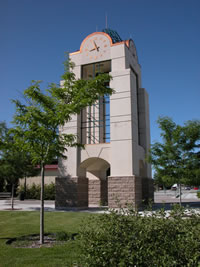
Welcome to Great Basin College!
Great Basin College values you! Valuing what we have in common and our differences means we will foster a college climate of mutual trust, tolerance, informed discourse and always seek to promote GBC as a "safe space" to explore new ideas and perspectives with opportunities for you to grow, learn and be successful in a friendly, supportive campus environment. GBC enriches people's lives by providing student-centered, post-secondary education to rural Nevada. GBC students enjoy outstanding academic programs, smaller class sizes, and excellent faculty who really care about our students. We are GBC!
ADMISSIONS

ACADEMICS

For High School Students
STUDENT SERVICES
GBC ONLINE

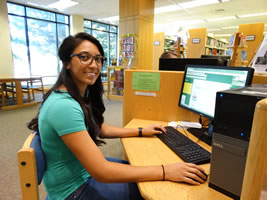
As part of Great Basin College's mission of transforming lives through education, GBC offers hundreds of online classes and several certificate and degree programs. See our current catalog for more information.
COMMUNITY
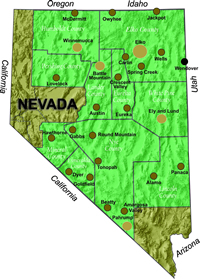
Great Basin College wants to be your choice for higher education. GBC offers associate and baccalaureate level instruction in career and technical education and academic areas. About 4,000 students are enrolled annually online from across the country and on campuses and centers across 86,500 square miles, two time zones, and ten of Nevada's largest counties. We border Arizona, Oregon, Idaho, Utah, and California. We are GBC!
INFORMATION

Need to find COVID-19 information quick? Check out our Coronavirus (COVID-19) Information and Resources page!
RESOURCES


GBC E-mail Support
Notice
Beginning in the Fall of 2011, Great Basin College ceased providing student e-mail accounts. Be sure you have a valid e-mail address set up in MyGBC (click for instructions) so that the college can contact you with important information.
Computing Helpdesk Phone line: 775-327-2170
For More Information Contact
Technology Help Desk
Phone: 775-327-2170
E-mail: helpdesk@gbcnv.edu
Why Great Basin College
Great Basin College offers associate and baccalaureate level education in academic, career and technical fields. Welcoming students from all corners of the country, both online and at our various campuses and centers, GBC's presence extends across two time zones and spans more than 86,000 square miles throughout Nevada. A leader in rural higher education, GBC takes pride in developing students who are well-prepared to meet the demands of industry and who contribute to the success and prosperity of the local economy.